8 Infographic Layout Types and When to Use Them
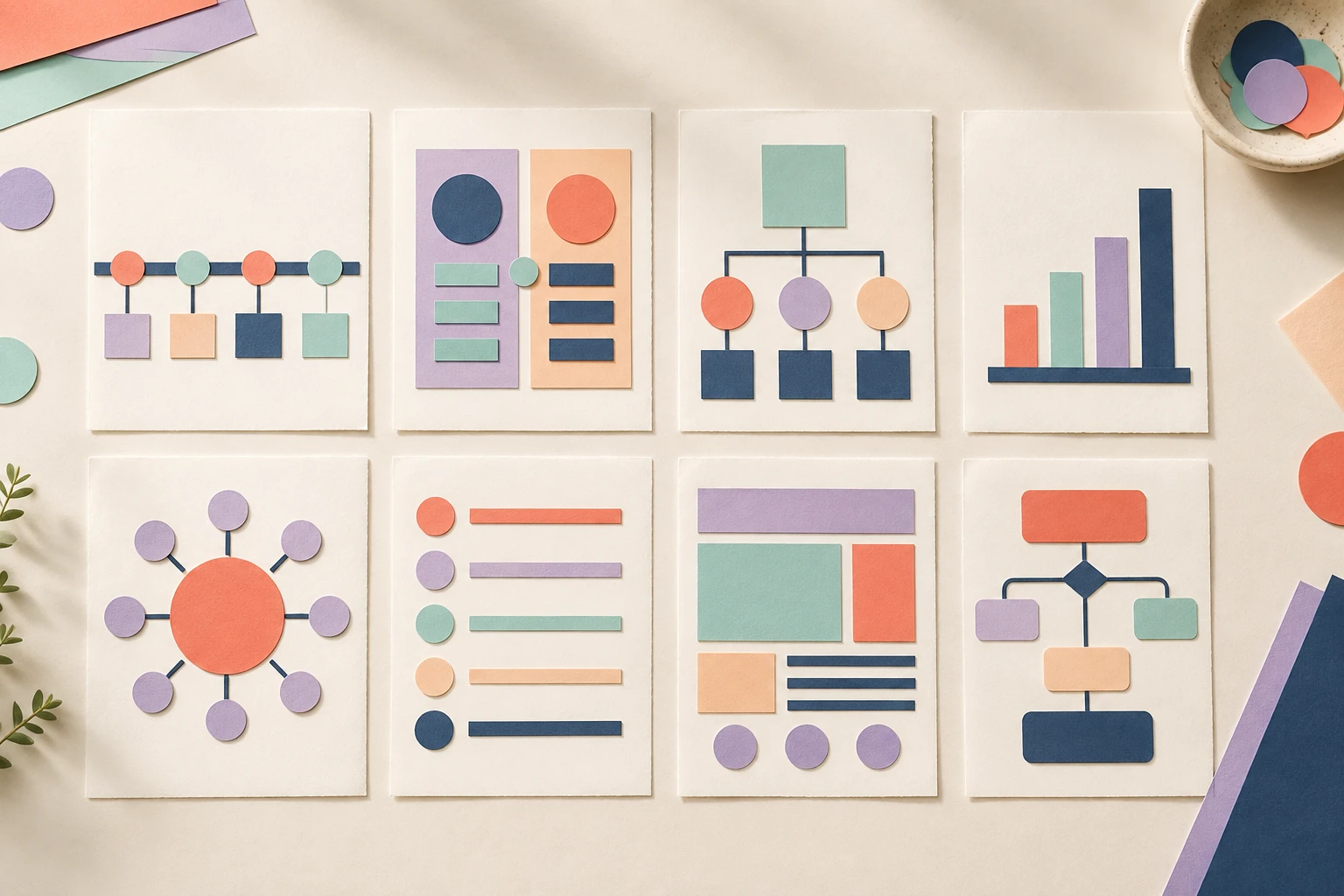
Choose an infographic layout by identifying the relationship in your content. Events over time need a timeline. Ordered actions need a process flow. Two alternatives need a comparison. Parts of an object need an anatomy view. The layout should make that relationship visible before the reader studies the details.
Vix AI includes eight ready-made layout families in its current iPhone and iPad app.
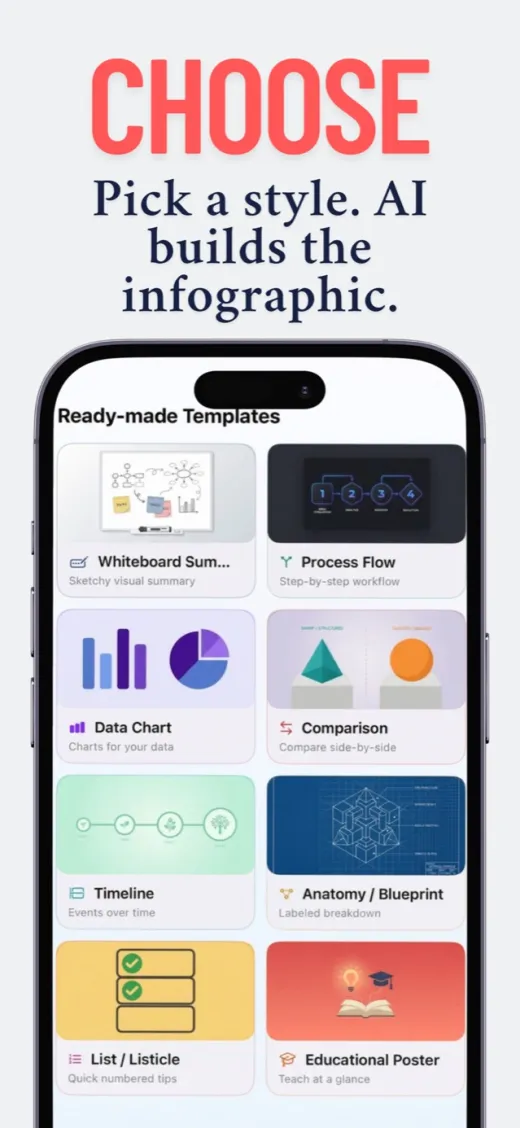
The layout picker groups common visual structures by the job they do.
Statistical or data chart
Use a data chart for quantities, rankings, trends, or composition. Decide what comparison matters before selecting bars, lines, or circular forms. Include units and time periods, and check the displayed values against the source CSV.
Comparison
Use a comparison when readers need to judge two products, choices, states, or methods against the same criteria. Keep both sides parallel. If one side has five criteria and the other has three, the visual may imply a difference that comes from the layout rather than the evidence.
Timeline
A timeline shows events in chronological order. It fits company history, project milestones, biographies, and changes in a field. Give dates a consistent scale when elapsed time matters. If the spacing is symbolic, make the order clear and avoid implying exact duration.
Process flow
Use a process flow for a sequence of actions with a defined start and finish. Write each step as an action and keep branches limited. If the reader can enter at several points or loop through stages, a whiteboard-style map may explain the system more honestly.
Whiteboard summary
A whiteboard summary connects ideas that do not belong in one straight sequence. It works for concept maps, decision trees, workshop notes, and systems with feedback loops. Label each connection clearly and leave enough space to follow the arrows.
Anatomy or blueprint
Choose an anatomy layout when the subject has physical or conceptual parts. It can label a building, device, biological system, or layered model. Place labels close to the part they describe and use leader lines that do not cross unnecessarily.
List or listicle
A listicle gives a set of tips, findings, or examples a clear order. Use it when the items are related but do not form a process. Numbers can communicate rank or sequence, so avoid numbering items when all of them have equal weight.
Educational poster
An educational poster combines explanation and visual reference on one page. It suits classroom concepts, study material, and public information. Start with the learning goal, then remove any detail that does not help a reader reach it.
Explore infographic layouts in Vix AI.
How to choose the right layout
Write the main relationship as a sentence. "These events happened in this order" points to a timeline. "These two choices differ on cost and speed" points to a comparison. "These parts make up the system" points to anatomy.
After generation, hide the body copy for a moment and look only at the arrangement. The structure should still suggest sequence, comparison, hierarchy, or connection. If it does not, choose a different layout before polishing color and type.
Frequently Asked Questions
Can one infographic combine two layout types?
Yes, when one structure is clearly primary. A timeline can include one small chart, for example, but several competing structures can make the reading order unclear.
What layout works best for a visual summary of mixed notes?
A whiteboard summary is a good starting point when the notes contain connected themes rather than a sequence. Group related ideas and use links only where the relationship adds meaning.
Put your next idea into a picture.
Turn text, PDFs, and data into shareable infographics on your iPhone. Your first creation is on us.
Download on theApp Store15 welcome credits for new accounts. In-app purchases for continued use.